
Mobile Self Check-In at Clinic: Let Us Know You’re Here
If you have the MyChart mobile app, you can check in using your phone when you arrive at an OrthoVirginia clinic. If your phone has location services turned on, you can even get a notification to make it easier. Follow the steps below to let us know you’ve arrived or to turn on location services.
Click on the link to jump to those instructions.
Let Us Know You’re Here: eCheck-In Completed
If you previously completed eCheck-In, follow these steps when you arrive at the OrthoVirginia office. If you did not complete eCheck-In, please scroll down to the next section. You will need a MyChart account and the MyChart mobile app.
Step 1
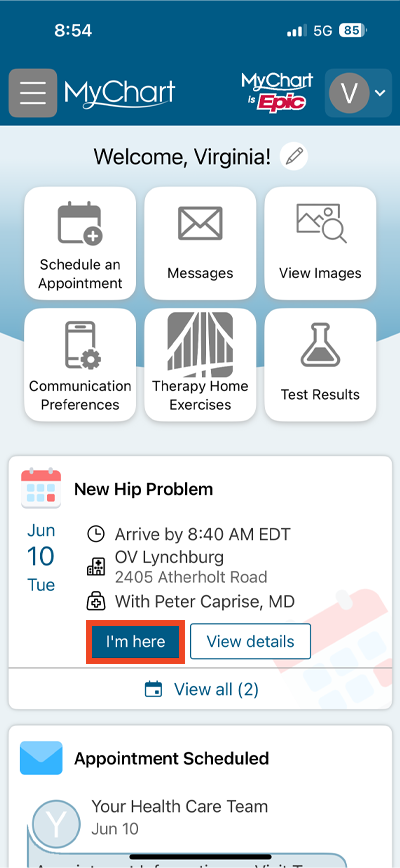
Log in to the MyChart mobile app and select I’m here under the appointment for today.
Step 2
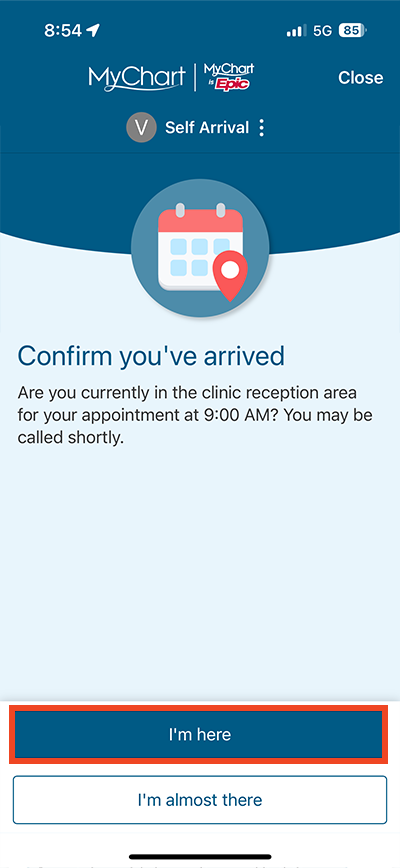
Select I’m here to confirm that you are in the clinic reception area.
Step 3
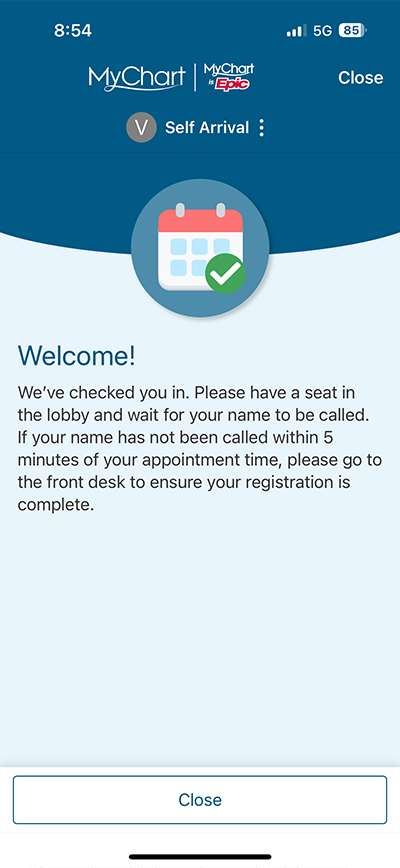
Sit down and wait to be called back.
Let Us Know You’re Here: eCheck-In Not Completed
If you have not completed eCheck-In, follow these steps when you arrive at the OrthoVirginia office. You will need a MyChart account and the MyChart mobile app.
Step 1
Log in to the MyChart mobile app and select I’m here under the appointment for today.
Step 2
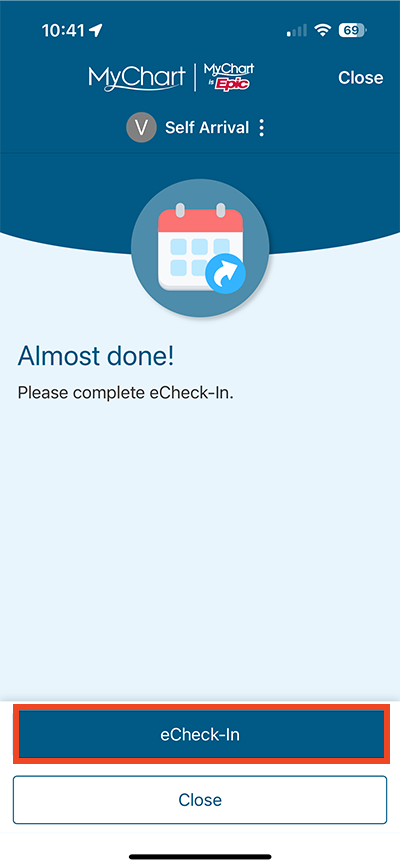
Confirm you are in the clinic waiting room.
How to Turn on Location Services
If you turn on location-based arrival, the MyChart app will send you a push notification when you’re close to the office. You will need a MyChart account and the MyChart mobile app. These instructions show an iPhone interface, but the Android interface is similar.
Step 1
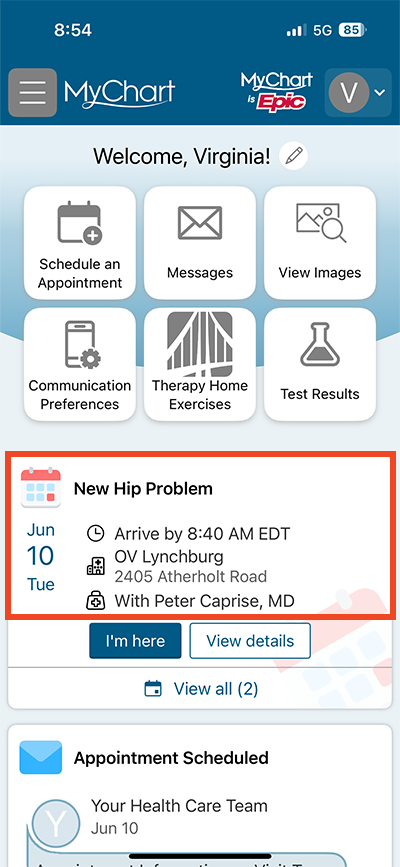
Log in to MyChart and click on the appointment itself.
Step 2
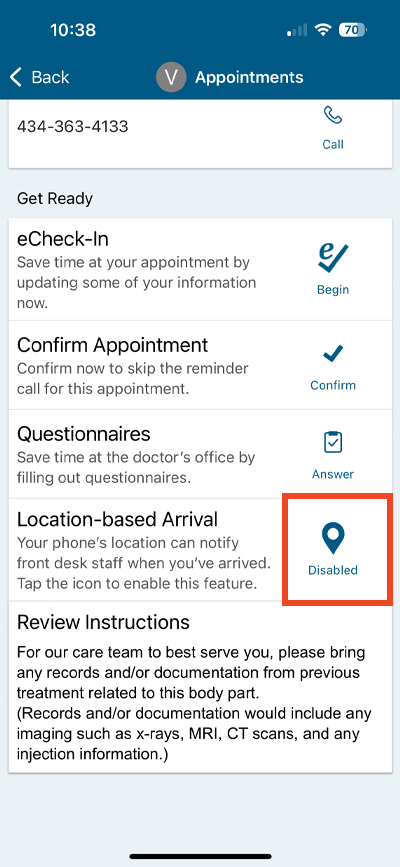
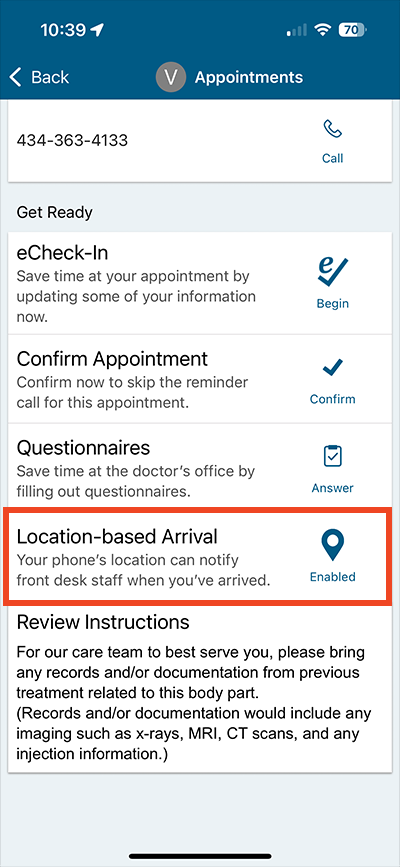
Click the icon next to Location-based Arrival.
Step 3
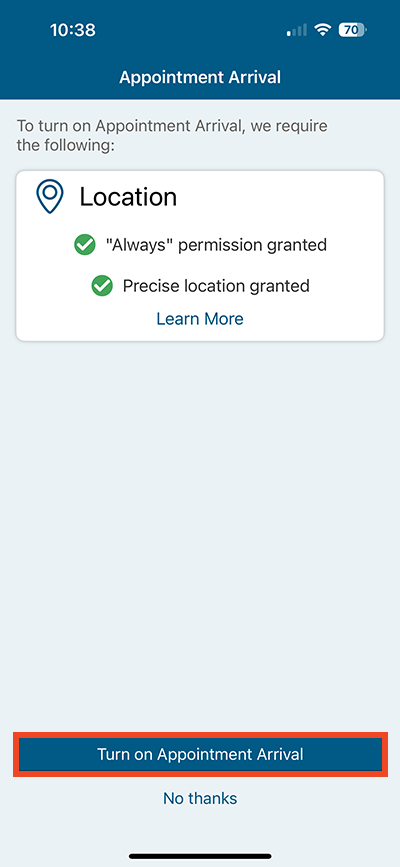
Click Turn on Appointment Arrival. Your phone will take you to settings.
Step 4
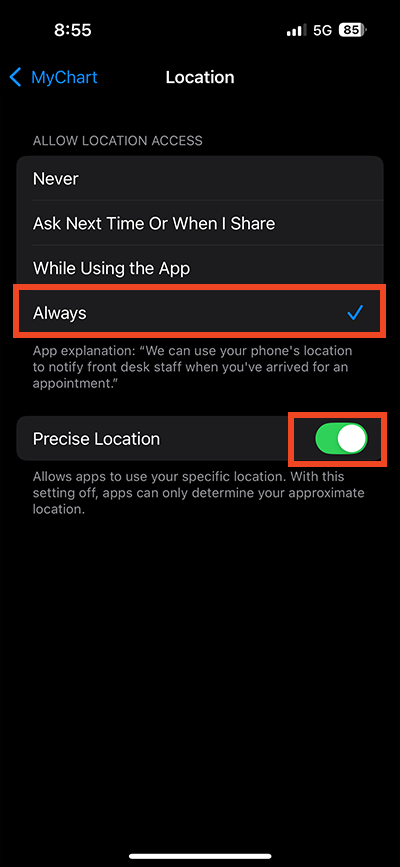
Within your settings, make sure Always and Precise are on for your MyChart app. In an iPhone, you’ll go to the MyChart app settings and selection Location.

Step 5
Then select Always and turn on the toggle for Precise Location.
Step 6
Location-based Arrival is now enabled. You will receive a push notification when you arrive at the clinic.
Questions?
If you need additional support using your MyChart account, email us at [email protected] or call our MyChart patient support line at 877-701-6088.