
Sending a Message in MyChart
Follow these instructions to send a message in MyChart. Select the type of message you want to send to go to those instructions.
- Ask a medical question
- Ask a customer service question
- Schedule an appointment (opens a new tab)
Ask a Medical Question in MyChart
Step 1
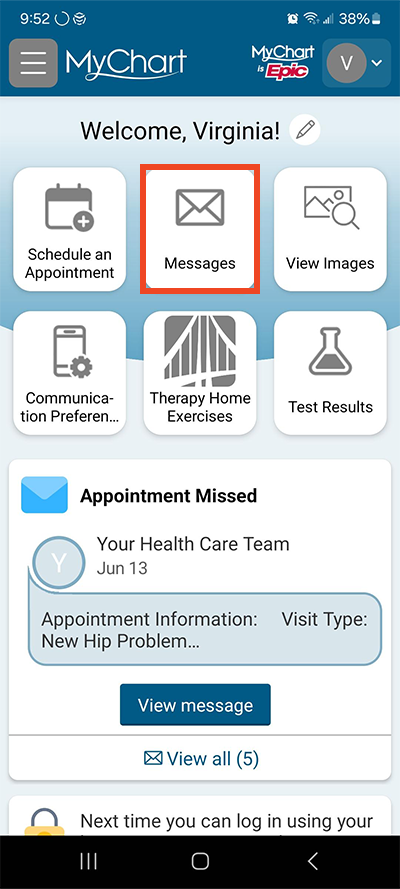
Log in to MyChart. Select Messages.
Step 2
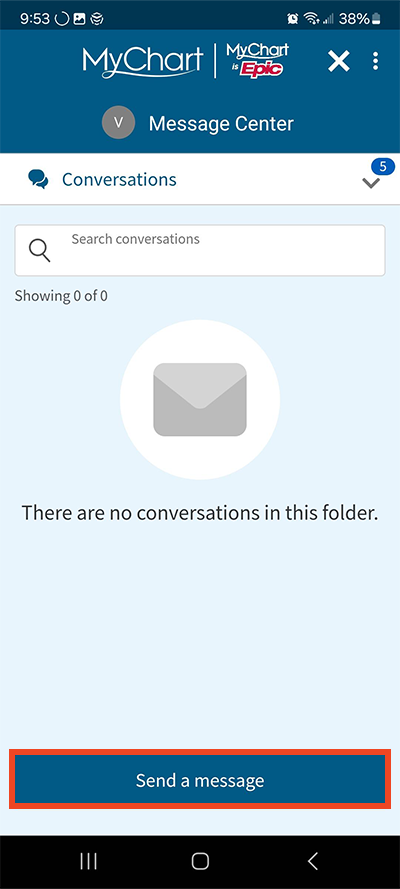
Select Send a message.
Step 3
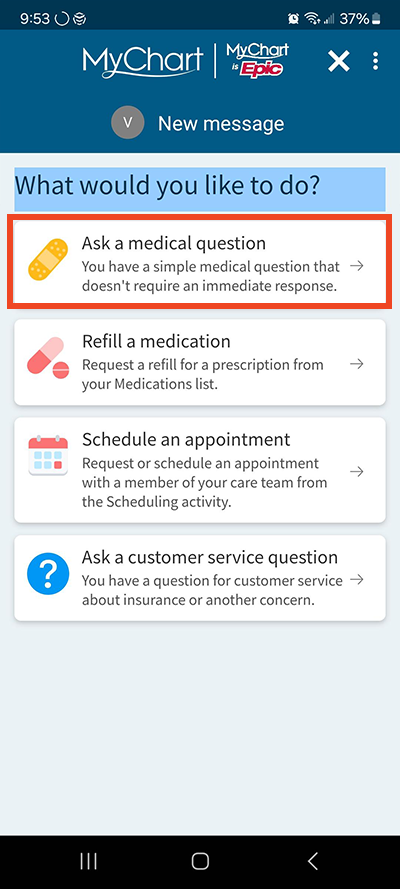
Select Ask a medical question.
Step 4
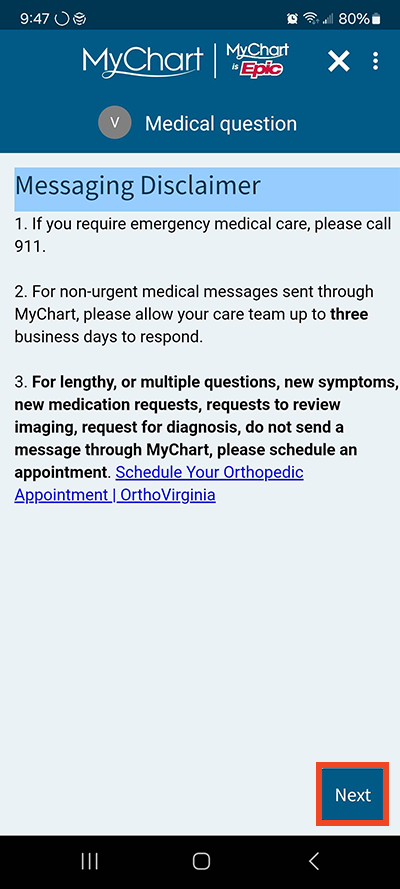
Review the messaging disclaimer and select Next.
Step 5
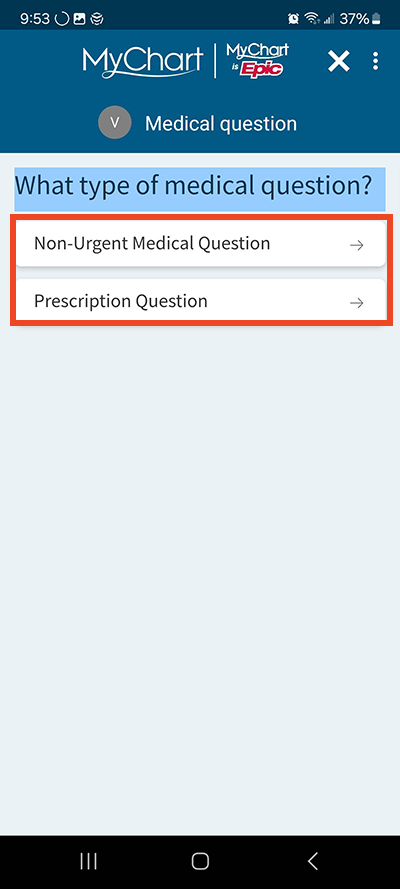
Select the type of medical question.
Step 6
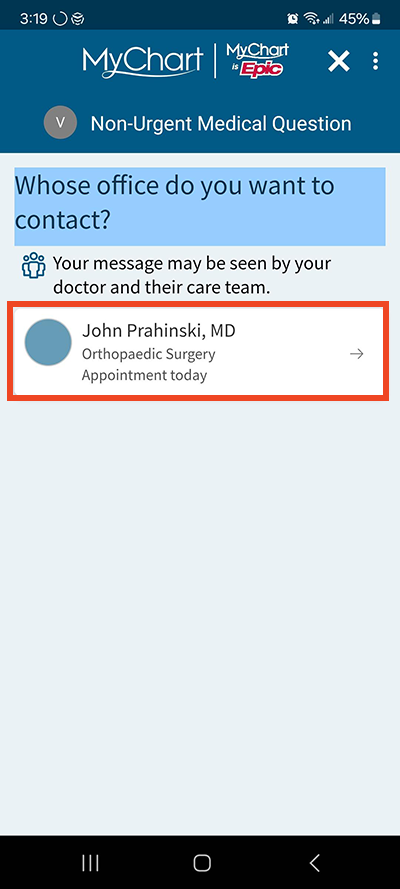
Select your provider.
Step 7
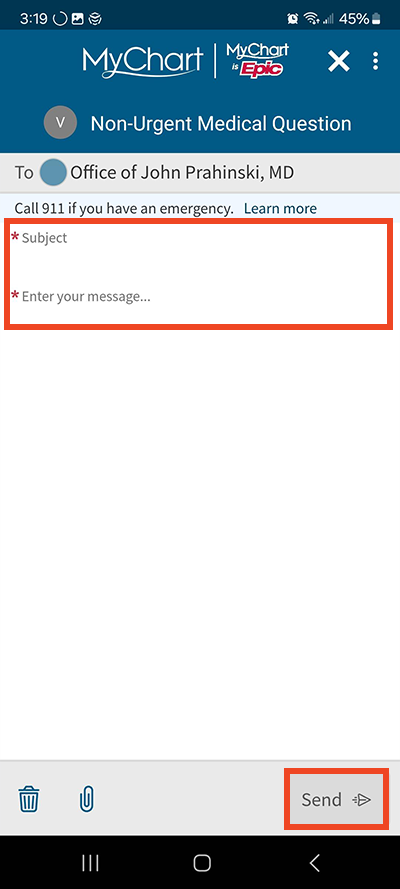
Write your subject line and message then select Send.
Step 8
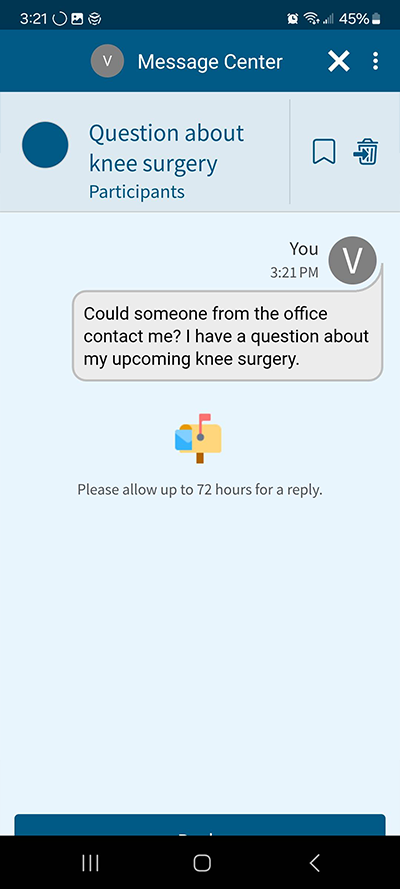
You will receive a confirmation that the message has been sent.
Send a Customer Service MyChart Message
Step 1
Log in to MyChart. Select Messages.
Step 2
Select Send a message.
Step 3
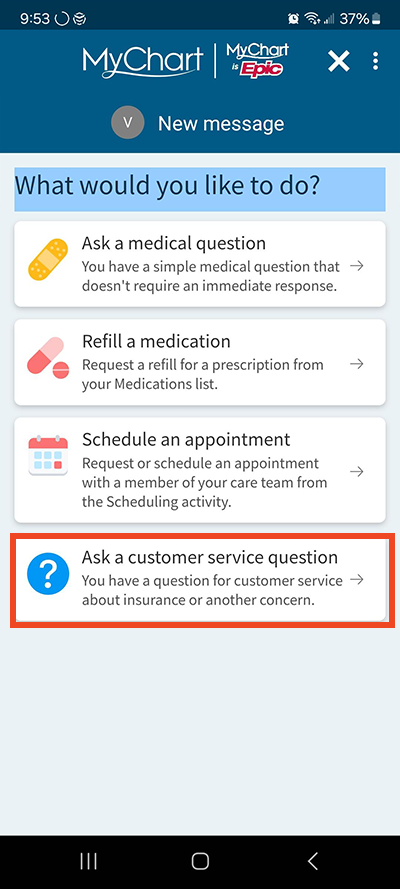
Select Ask a customer service question.
Step 4
Select the type of customer service question.
Step 5
Write your subject line and message then select Send.
Step 6
You will receive a confirmation that the message has been sent.
Questions?
If you need additional support using your MyChart account, email us at [email protected] or call our MyChart patient support line at 877-701-6088.