
Accessing Letters in MyChart
Follow these instructions to access any letters your doctor has written in MyChart.
Note: These are letters for purposes such as sending to your workplace or school. If you have a question for your doctor, please use the messaging option within MyChart.
Step 1
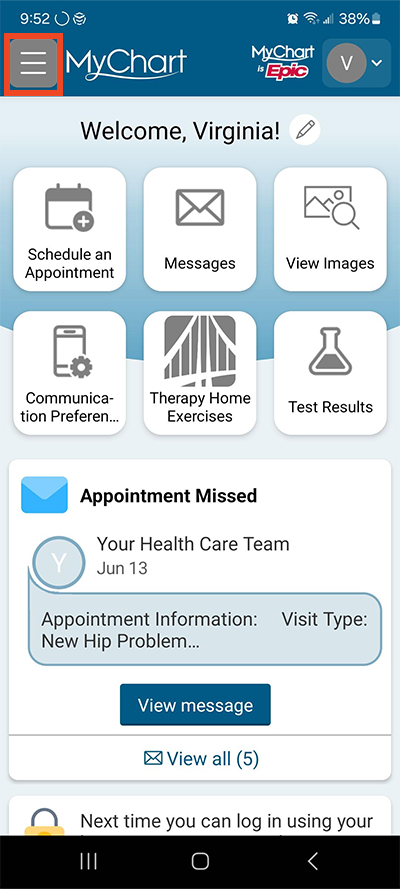
Log in to MyChart. Select the menu button in the top left, made up of three horizontal bars.
Step 2
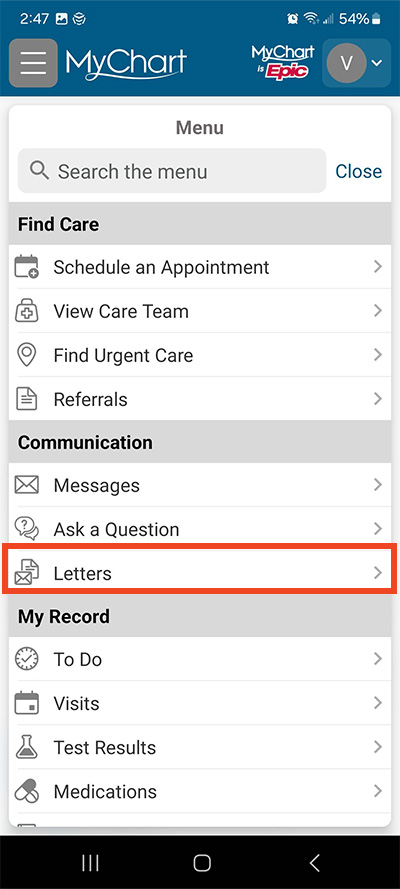
Under the heading Communication, select Letters.
Step 3
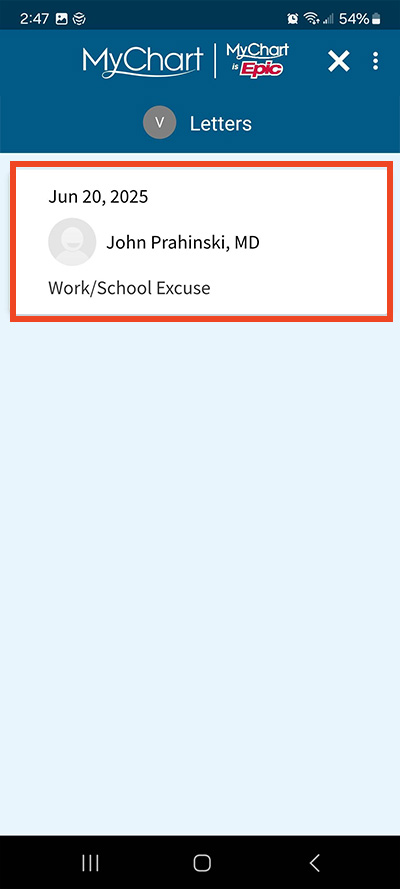
Select the letter to open it.
Step 4
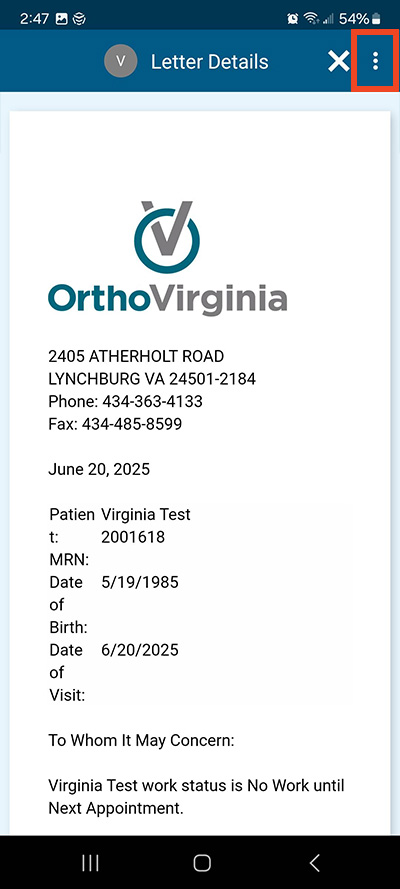
You are now seeing the details of the letter. To save to PDF, select the three dots in the top right corner.
Questions?
If you need additional support using your MyChart account, email us at [email protected] or call our MyChart patient support line at 877-701-6088.