
View X-rays, MRIs and CT scans online
OrthoVirginia is empowering patients to access x-rays, MRIs and CT scans taken by OrthoVirginia from within MyChart.
Your images will be neatly organized, available, and stored using Ambra in MyChart. You can view the image on-demand, anytime, anywhere. And you can share your images with other providers or family members with email or QR code access.
The only thing you need is a MyChart account. And we’ve made getting a MyChart account super easy, too.
This service is available for all OrthoVirginia x-rays, MRIs and CT scans taken since March 1, 2021. OrthoVirginia is the first practice in Virginia to offer this exciting technology.
- Instructions to Access X-rays, MRIs and CT Scans on Desktop
- Instructions to Access X-rays, MRIs and CT Scans on Mobile
- Instructions to Send X-rays, MRIs and CT Scans on Desktop
- Instructions to Make a QR Code for X-rays, MRIs and CT Scans on Desktop
- Frequently Asked Questions
Instructions to Access X-rays, MRIs and CT Scans on Desktop
Step 1
Log into MyChart.
Step 2
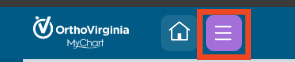
Click the menu button, which has three horizontal lines on it.
Step 3
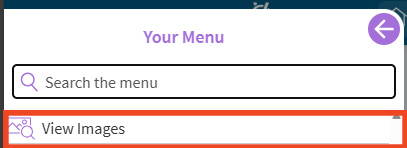
Click View Images.
Step 4
- If you have not created an Ambra account previously, you will need to agree to the terms and conditions.
- If you have created an Ambra account, the page will automatically load.
Step 5
Each row is a different x-ray, CT scan or MRI.
Step 6
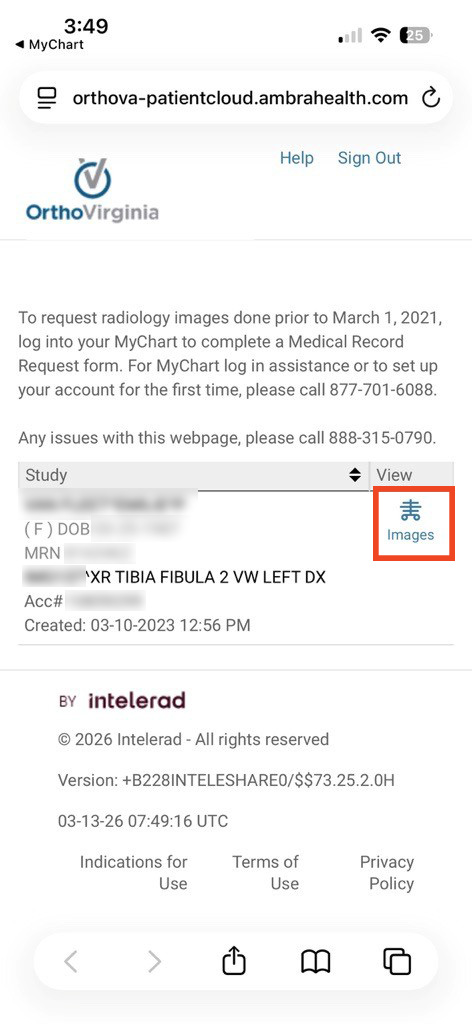
Once you identify which x-ray, CT scan or MRI you want, go to that row and click Images to open and view the image.
Click Download to download the image to the device you are using.

The Frequently Asked Questions link above the row of images has illustrated instructions on how to see your images.
Instructions to Access X-rays, MRIs and CT Scans on Mobile
Step 1
Log into MyChart.
Step 2
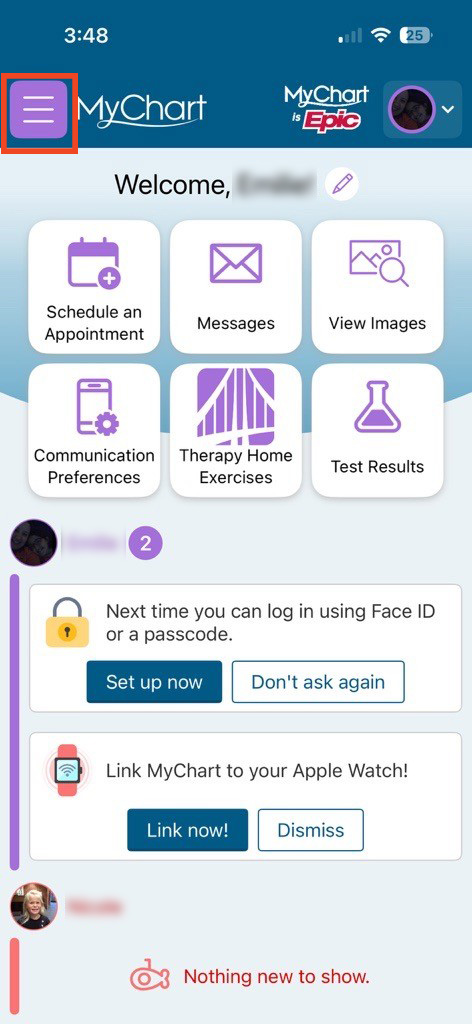
Click the menu button, which has three horizontal lines on it.
Step 3
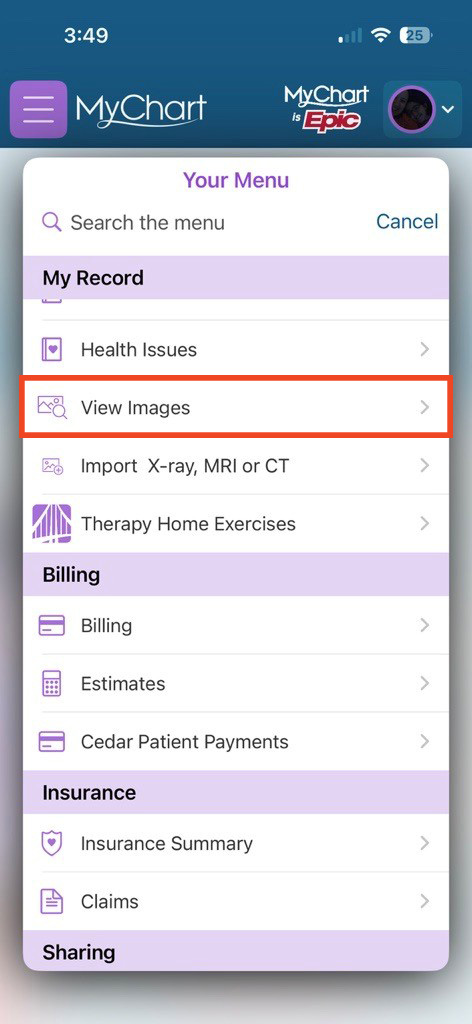
Click View Images.
Step 4
If you have not created an Ambra account previously, you will need to agree to the terms and conditions.
If you have created an Ambra account, the page will automatically load.
Step 5
Each row is a different x-ray, CT scan or MRI.
Step 6
Once you identify which x-ray, CT scan or MRI you want, go to that row and click Images to open and view the image.
Instructions to Send X-rays, MRIs and CT Scans on Desktop
Emailing an x-ray, CT scan or MRI can only be done from a computer. These steps will not work on the app or mobile browser.
Step 1
Identify the image that you want to email.
Step 2
Within that row, click the checkbox under the arrow at the end of the row.

Step 3
Click the Share button. A separate window will open.

Step 4
Within the separate window, add the email address you want to send the image to. You may also add an optional message.
Multiple images may be selected at the same time to be emailed.

Instructions to Make a QR Code for X-rays, MRIs and CT Scans on Desktop
Creating a QR code for an x-ray, CT scan or MRI can only be done from a computer. These steps will not work on the app or mobile browser.
Step 1
Identify the image that you want to make a QR code for.
Step 2
Click the box with an arrow in it directly left of the image name.
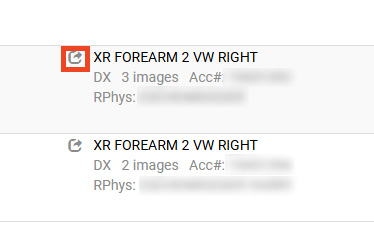
Step 3
Click New Access Link (next to Patient Access Link).
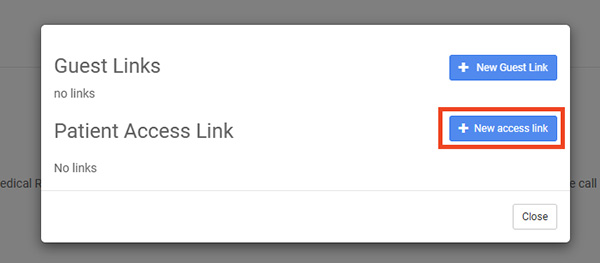
Step 4
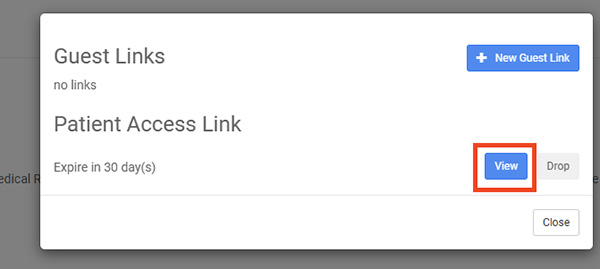
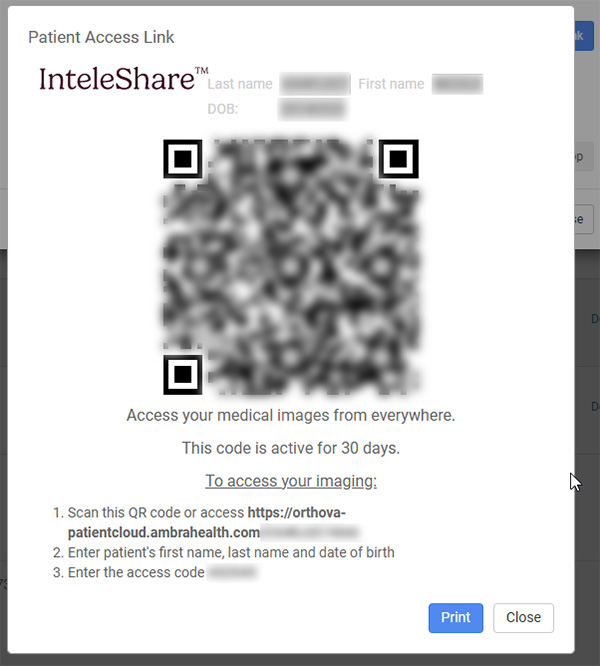
A QR code will be generated.
Click View to get the QR code.
Step 5
You can take a screenshot of the QR code, email it, or print out a paper copy.
Frequently Asked Questions
Ambra is the tool that allows your x-rays and MRIs to be shown within MyChart. Creating an Ambra account allows you to view your x-rays, MRIs and CT scans online. You will only need to create the Ambra account once.
No, lines or notes on your x-ray, MRI or CT scan in the viewer will not be saved.
No, x-rays, MRIs or CT scans taken outside of OrthoVirginia are not visible. Only x-rays, MRIs or CT scans taken by OrthoVirginia can be seen.
Questions?
If you need additional support using your MyChart account, email us at [email protected] or call our MyChart patient support line at 877-701-6088.